aclarke

joined 2 years ago
[–] aclarke@lemmy.world 7 points 1 week ago (1 children)

Oh I'm looking into this IMMEDIATELY! πŸ˜‚ That's awesome!! Does it also form a mesh?

[–] aclarke@lemmy.world 20 points 1 week ago

That's exactly the reason why I made it only work with user-defined aliases. That way it forces you to think of how to cover the most ground command-wise without needing anything interactive or too much response data. It's slow but it's functional and that's really all I wanted from it. I can have scripts on my server that fix things and just invoke them with this.

[–] aclarke@lemmy.world 14 points 1 week ago

They're encrypted with a PSK encrypted with either AES128 or AES256. It's built into the Meshtastic firmware so that's not something I have to handle directly, thankfully!

[–] aclarke@lemmy.world 10 points 1 week ago* (last edited 1 week ago) (1 children)

I started thinking about using the LoRa protocol directly for this too! My biggest concern is overwhelming the mesh. But I also had no idea what protocol would work so thanks for mentioning PPP. I haven't thought about that since I was a kid! That would be really cool though!

Maybe just for a POC someday?

Also: how are you liking MeshCore? Did you have to pay for a license to use it? How expensive is the mesh you're building? That is something I've started thinking about too for this exact reason πŸ˜‚

[–] aclarke@lemmy.world 2 points 1 week ago

Ah I see what you mean. Yep I totally misunderstood what you meant. Yes I did think about that but I wanted to be able to control my servers too, hence MeshExec. ☺️

[–] aclarke@lemmy.world 7 points 1 week ago

Thank you! ☺️

[–] aclarke@lemmy.world 4 points 1 week ago* (last edited 1 week ago) (2 children)

I could except it would need Internet access to subscribe or publish to an MQTT broker. I wanted remote control when both I don't have Internet access when I'm away from home, and my home itself has no Internet access.

For MQTT packets to be forwarded over the mesh, there needs to be at least one MQTT gateway connected to it that has Internet access.


So one thing I've done to help me find more things to self host or do is think like a prepper. Like...what if my ISP goes out? How can I remotely control my homelab or even trigger Home Assistant events if my ISP is out? I had no idea how to solve this until about 6 months ago when I discovered Meshtastic.

For anyone who doesn't know: Meshtastic is basically an open-source, public mesh-network. You just buy a cheap ESP32 device, flash it with Meshtastic (They have a SUPER easy web-flasher so you don't need to be super technical to do it), and connect to it via Bluetooth with your phone and you're good to go! Then you can send messages to other nodes around you and have fully off-grid communications!

Well, while Meshtastic supports MQTT, that does require at least one end of the connection to have internet access. I wanted a way to SSH into my servers and diagnose or fix things without needing to rely on my ISP at all. Or even trigger things in Home Assistant without having access to any ISP. So, that naturally gave way to the idea of MeshExec.

MeshExec is a little binary that attaches to your serially-connected Meshtastic node, and looks for messages in a specified private channel for aliases to execute. Then it will execute whatever commands you specify and automatically chunk them and send them back through the mesh in a staggered fashion. This chunking is done to both fit inside the max message size that Meshtastic supports, and so that the mesh is not overwhelmed with messages and drops them.

You define the aliases, the shell used to execute the commands, etc. So you can basically use it to do whatever you want over the mesh! I've set up a handful of aliases to do simple diagnostics on my homelab servers. Things like restarting docker containers, checking the top 3 processes consuming the most memory, etc.

I decided to use aliases because I figured direct shell access to a server is SUPER dangerous, especially if you accidentally attach the daemon to a public channel.

No idea if this will be useful to anyone else, but I made it as easy to use as possible if anyone does want to use it. Here's the link to the repo if anyone wants to give it a go.

I just wanted to share how I've managed to find a way to further reduce my reliance on big corporations and my love for open-source software!

If anyone decides to give this a try, I'd love to know your thoughts or answer any questions you have!


So I picked up my first Meshtastic device about 4 months ago. It's become a problem ever since! But one thing I really wanted to get out of Meshtastic was a way to reduce my reliance on my ISP for accessing and controlling my homelab.

I wanted a way to SSH into my servers and diagnose or fix things without needing to rely on my ISP at all. So, that naturally gave way to the idea of MeshExec


MeshExec is a little binary that attaches to your serially-connected Meshtastic node, and looks for messages in a specified private channel for aliases to execute. Then it will execute whatever commands you specify and automatically chunk them and send them back through the mesh in a staggered fashion. This chunking is done to both fit inside the max message size that Meshtastic supports, and so that the mesh is not overwhelmed with messages and drops them.

You define the aliases, the shell used to execute the commands, etc. So you can basically use it to do whatever you want over the mesh! I've set up a handful of aliases to do simple diagnostics on my homelab servers. Things like restarting docker containers, checking the top 3 processes consuming the most memory, etc.

I decided to use aliases because I figured direct shell access to a server is SUPER dangerous, especially if you accidentally attach the daemon to a public channel.


No idea if this will be useful to anyone else, but I made it as easy to use as possible if anyone does want to use it. Here's the link to the repo if anyone wants to give it a go.

I just wanted to share how I've been using Meshtastic and gone full-prepper to have control over my homelab (or local-only Home Assistant) without needing an ISP.

If anyone decides to give this a try, I'd love to know your thoughts or answer any questions you have!

[–] aclarke@lemmy.world 1 points 3 weeks ago

Yeah of course! That guy is such a legend for what he did in the PSP modding scene!

[–] aclarke@lemmy.world 2 points 3 weeks ago (2 children)

Sadly no I'm not, but I was very inspired by him when I was in that scene! PSP hacking was my first experience with customizing any kind of device beyond what average users can do and it's what made me fall in love with computers as a kid. I don't think I'd be the software engineer I am today or even in this field if it wasn't for him. My name is Alex so I thought I could pay homage to him by choosing a similar username, since he had such a massive impact on my life ☺️


Managarr v0.7.0 has been released with Lidarr support!

What is Managarr?

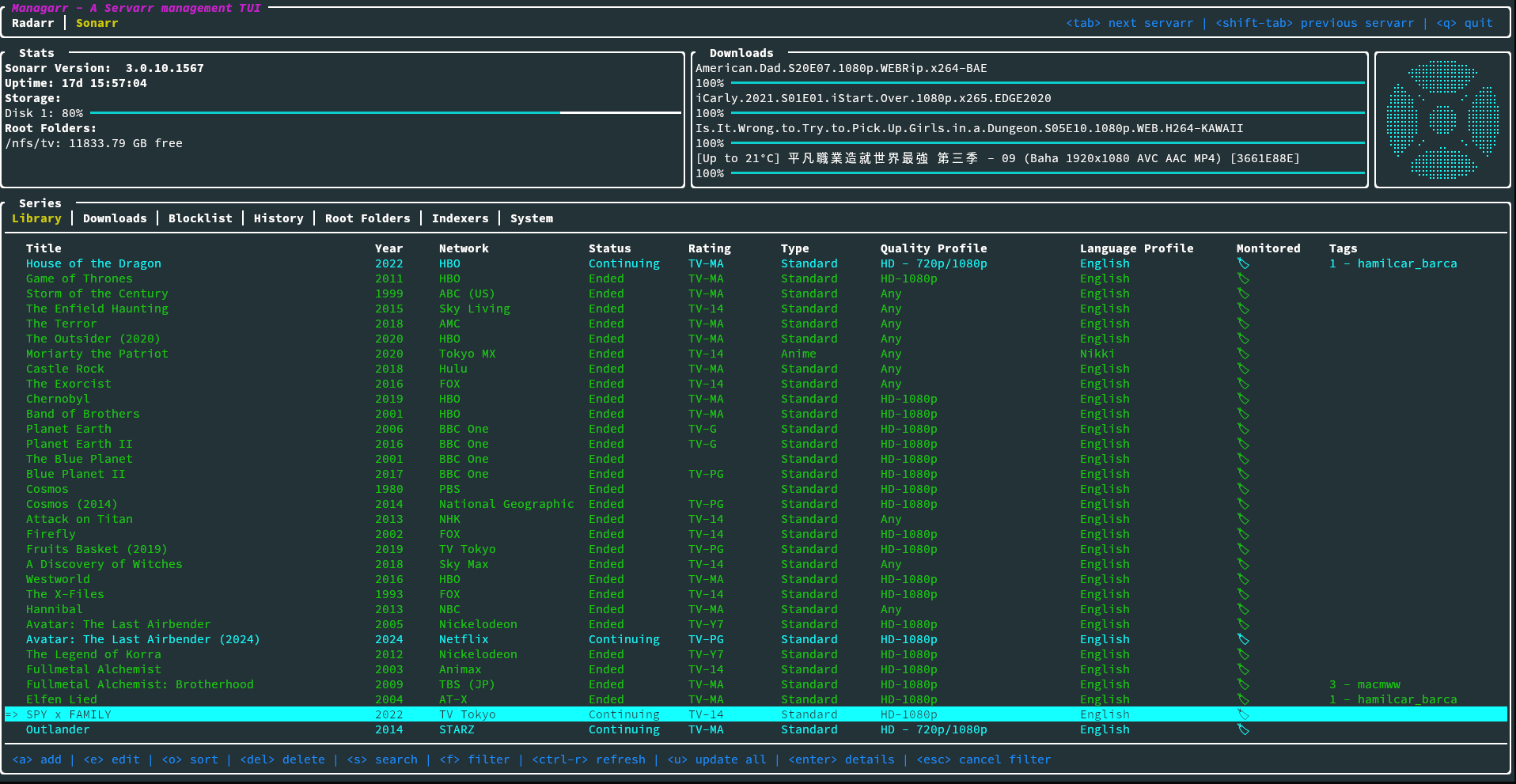
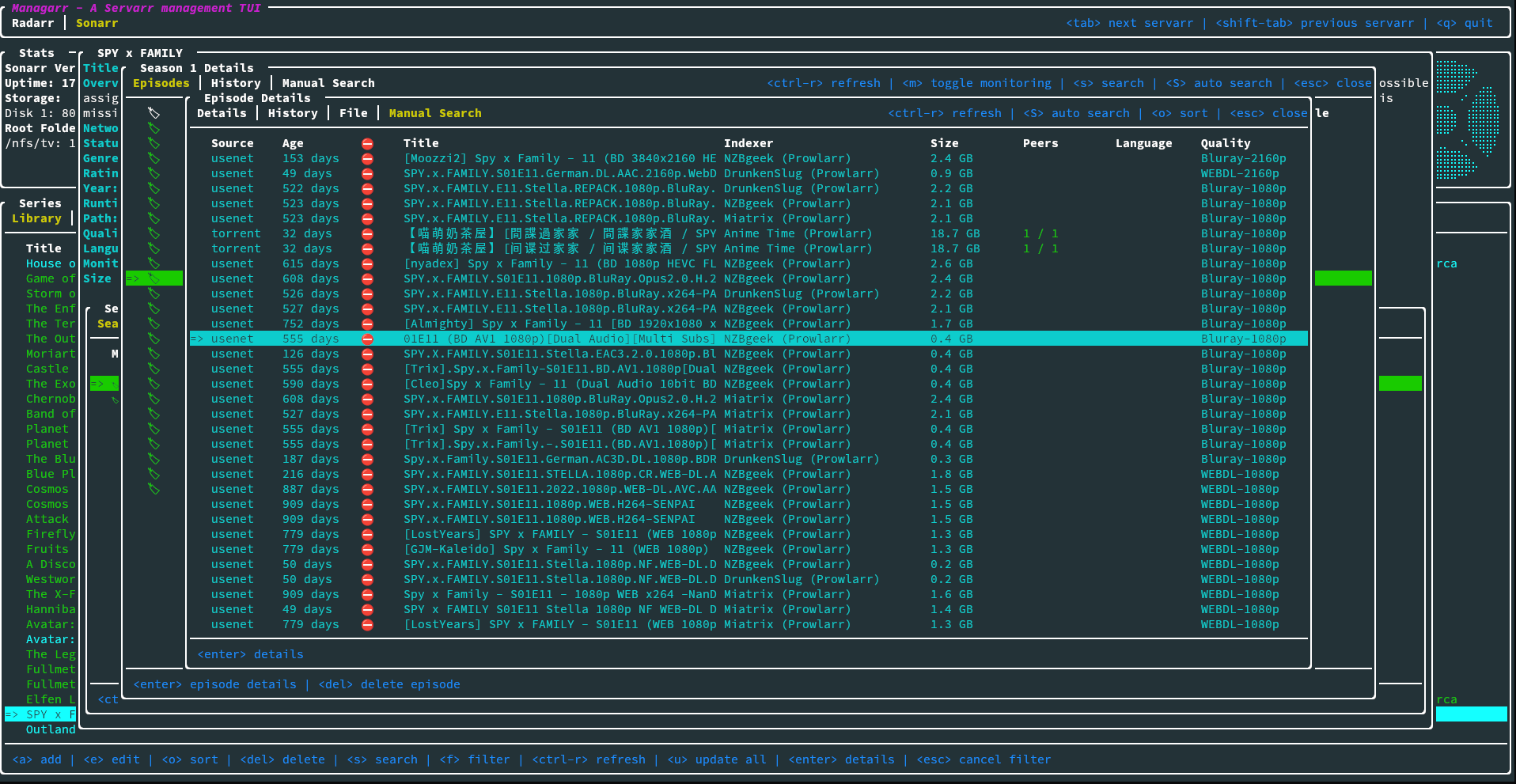
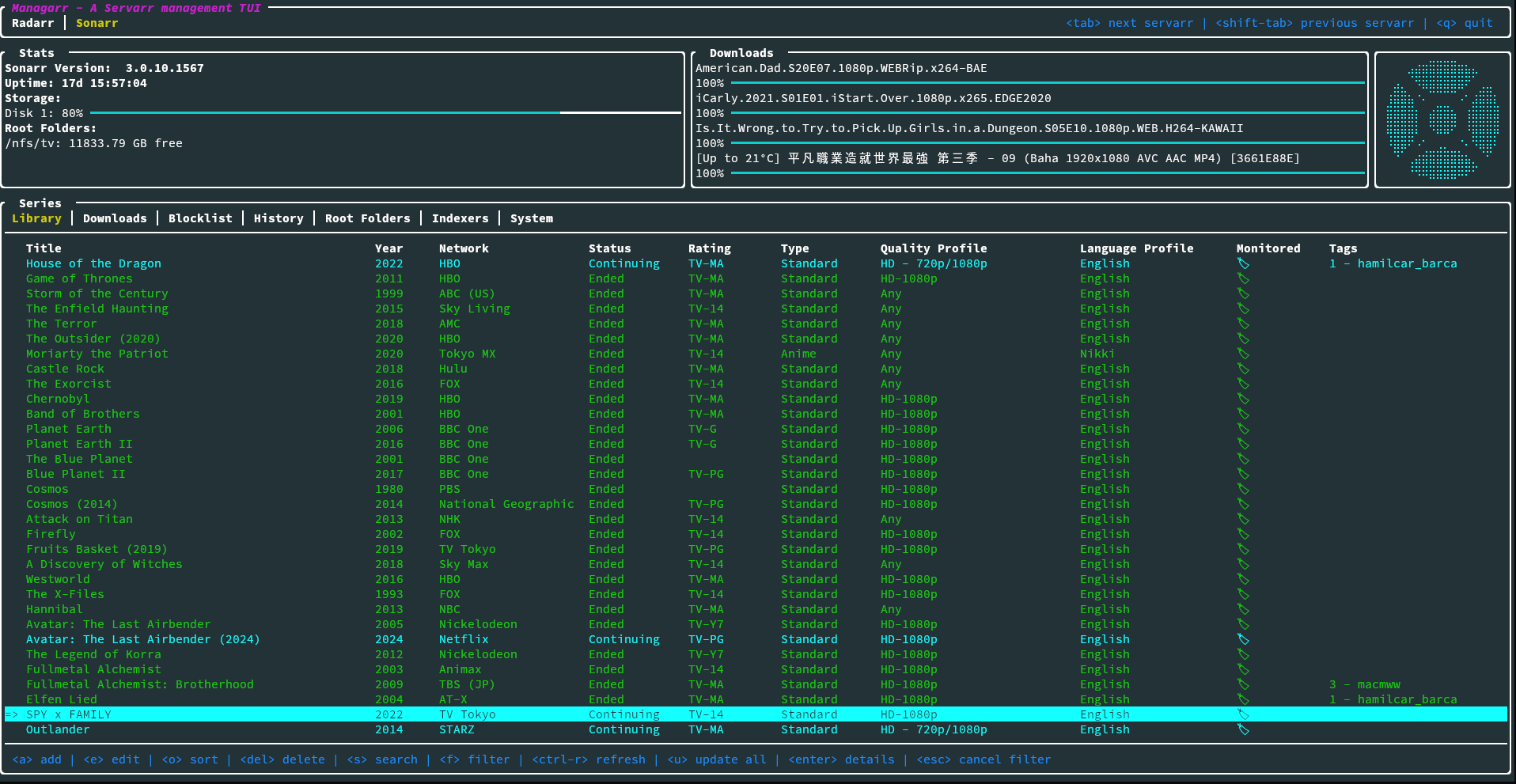
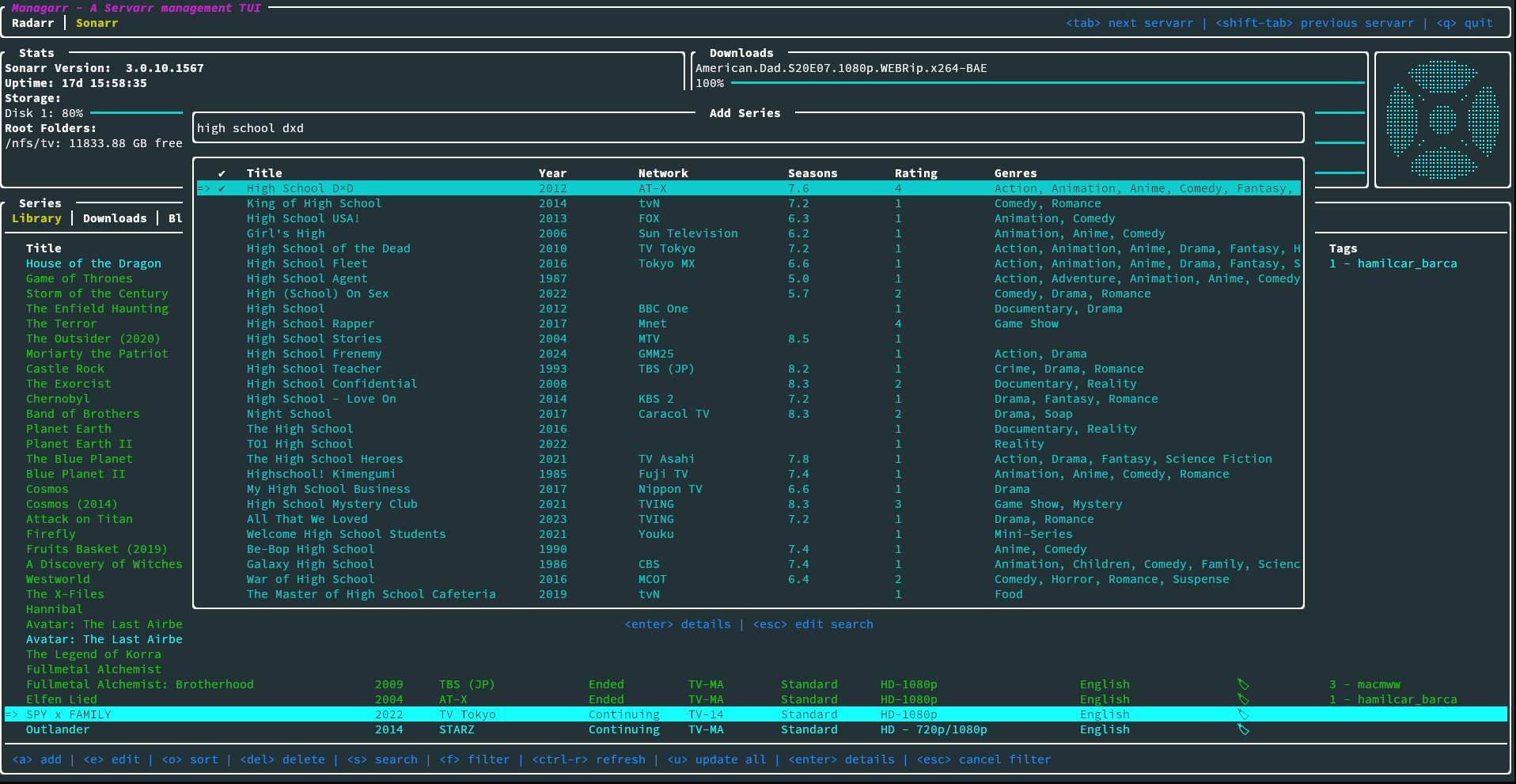
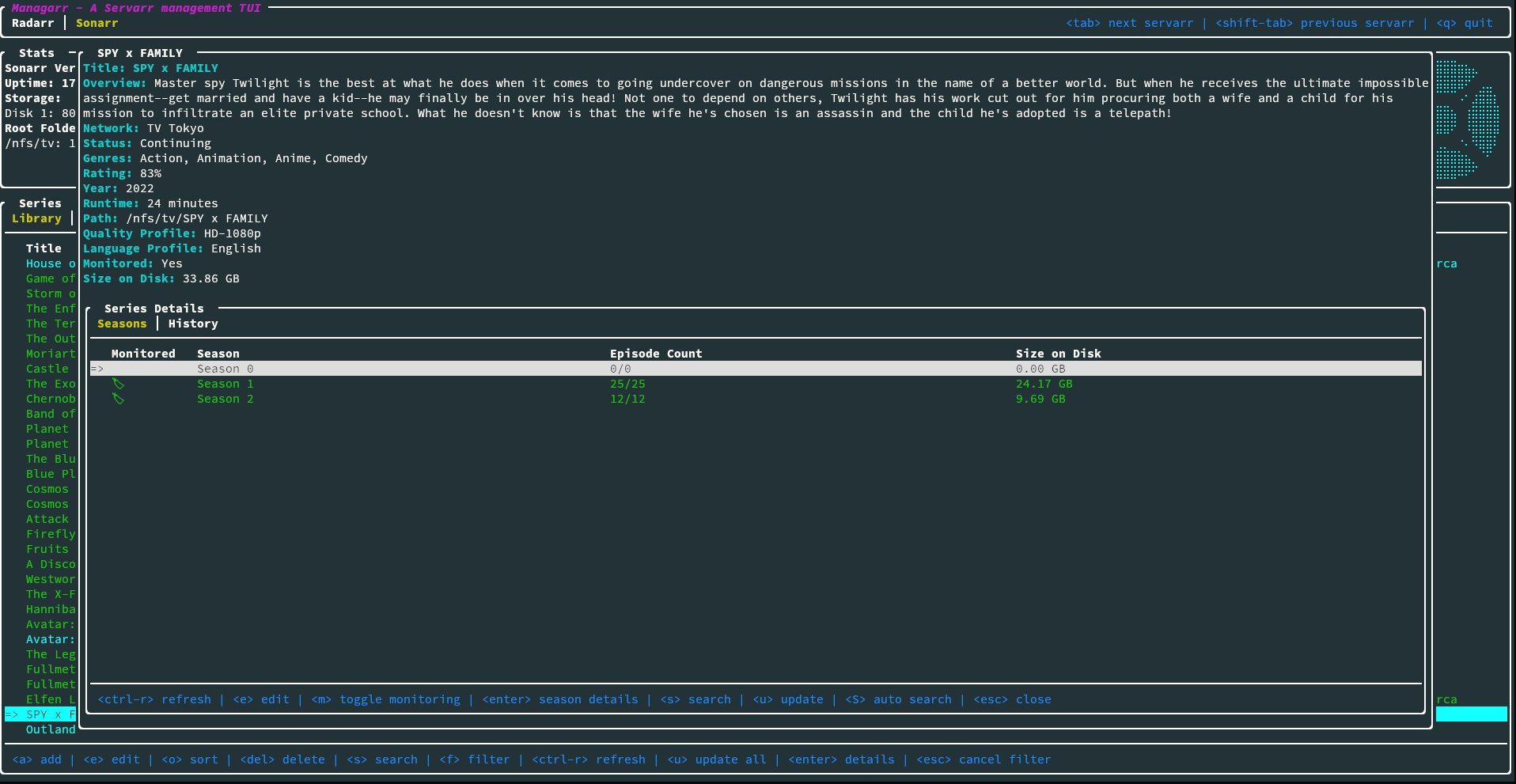
Managarr is a terminal-based application for managing all your Servarr instances from one place. It provides a user-friendly interface to interact with your media libraries, making it easier to manage your downloads, monitor your artists and albums, and perform various actions directly from the terminal.

It sports two modes: a TUI mode (Text-based User Interface) and a CLI mode (Command Line Interface).

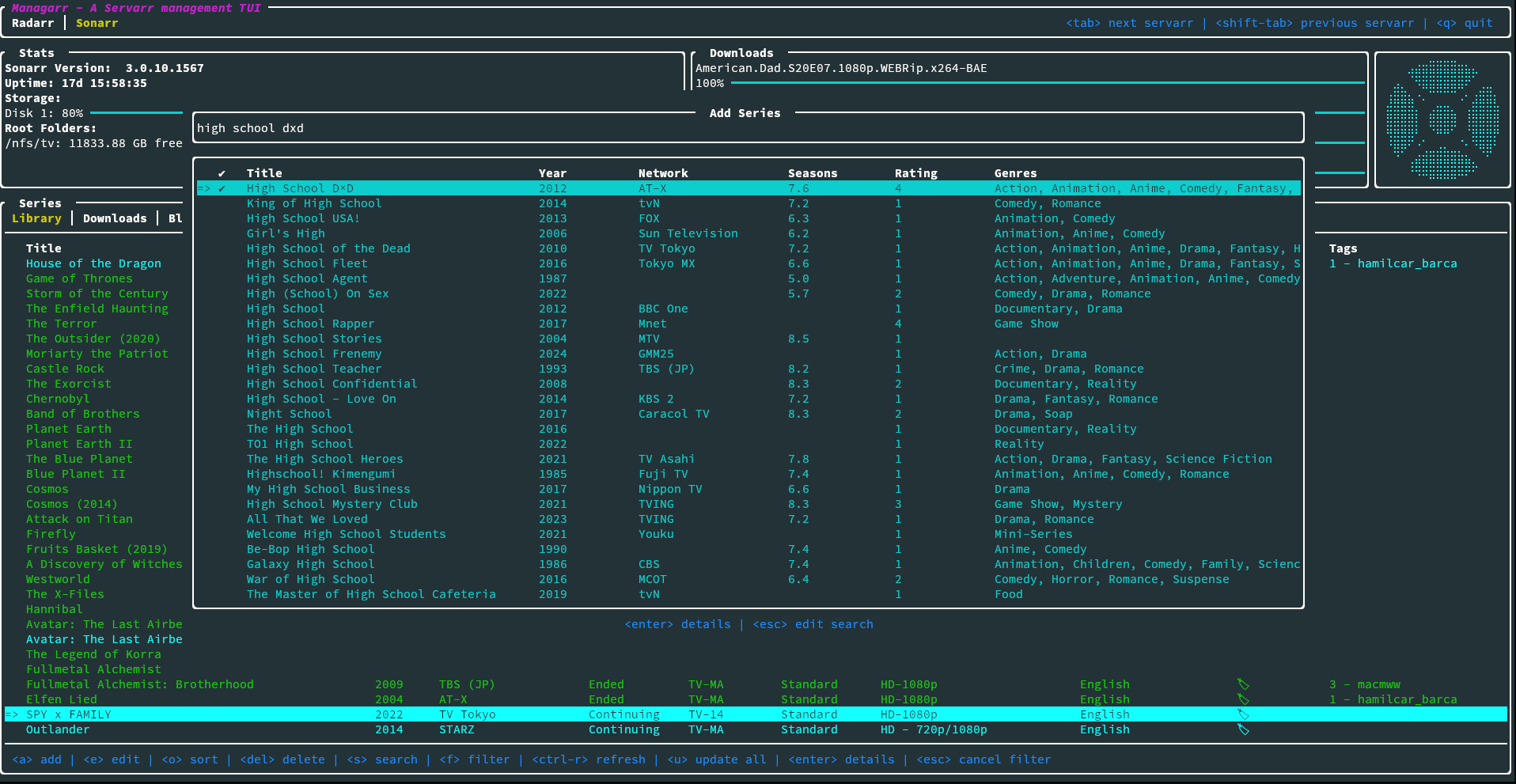
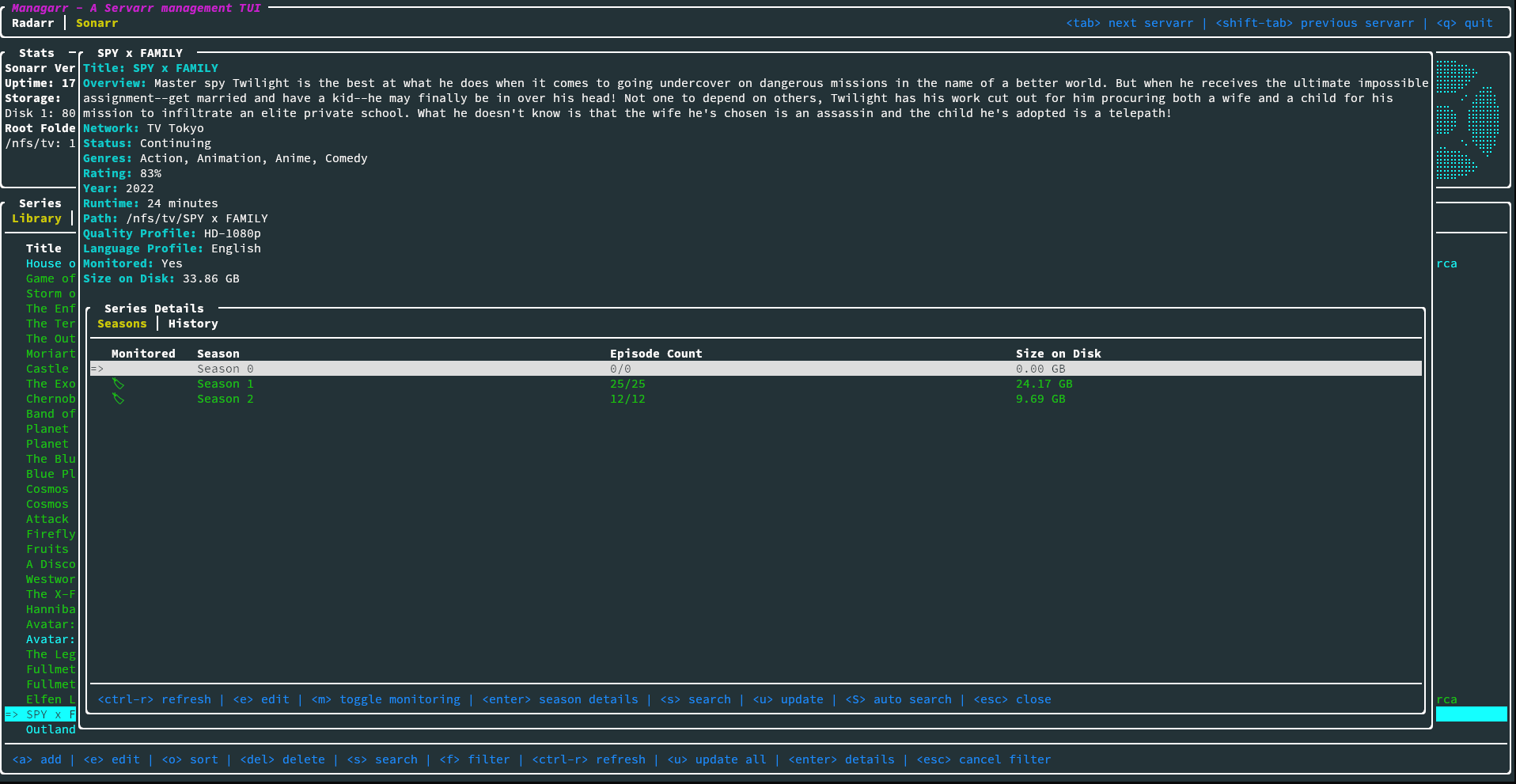
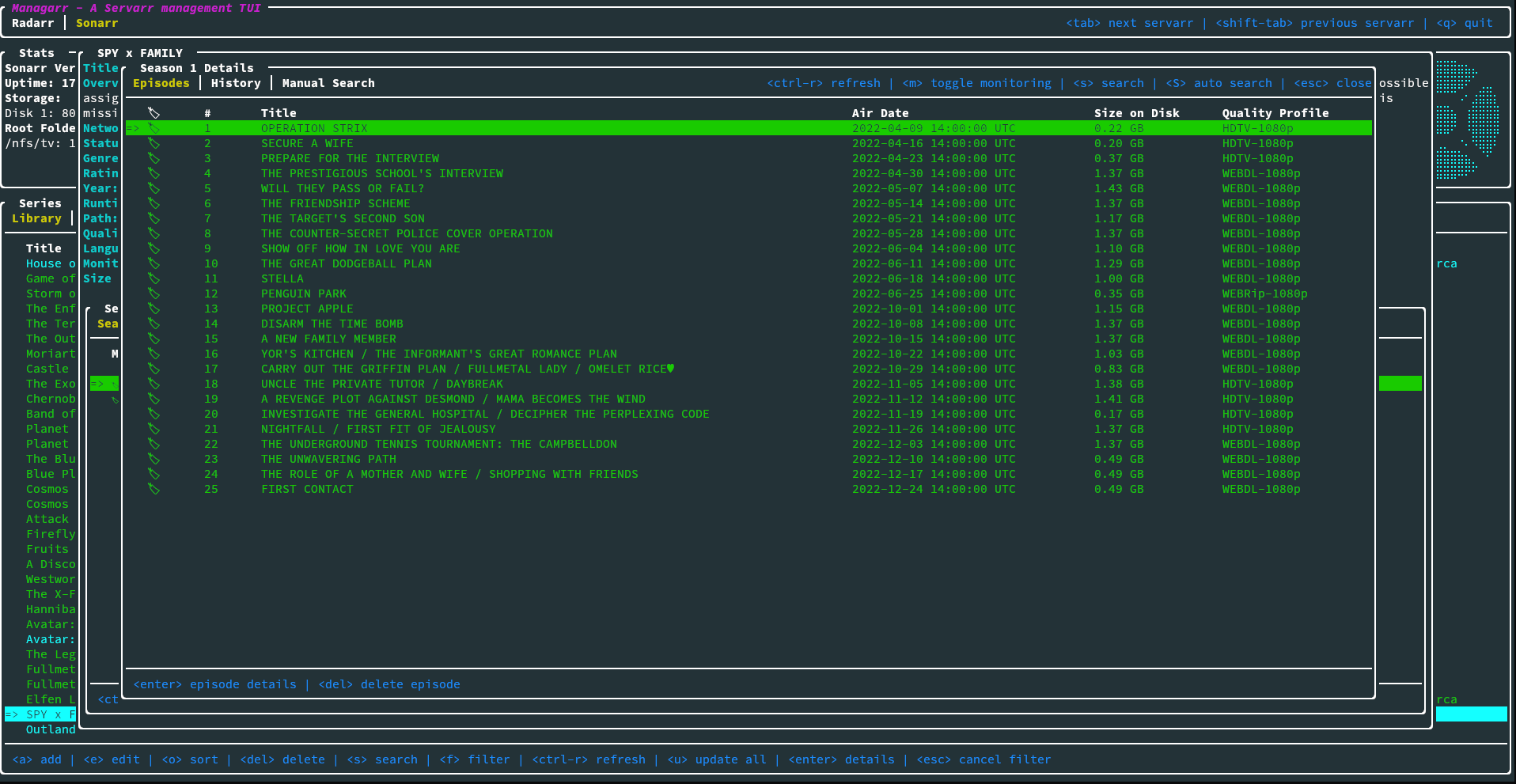
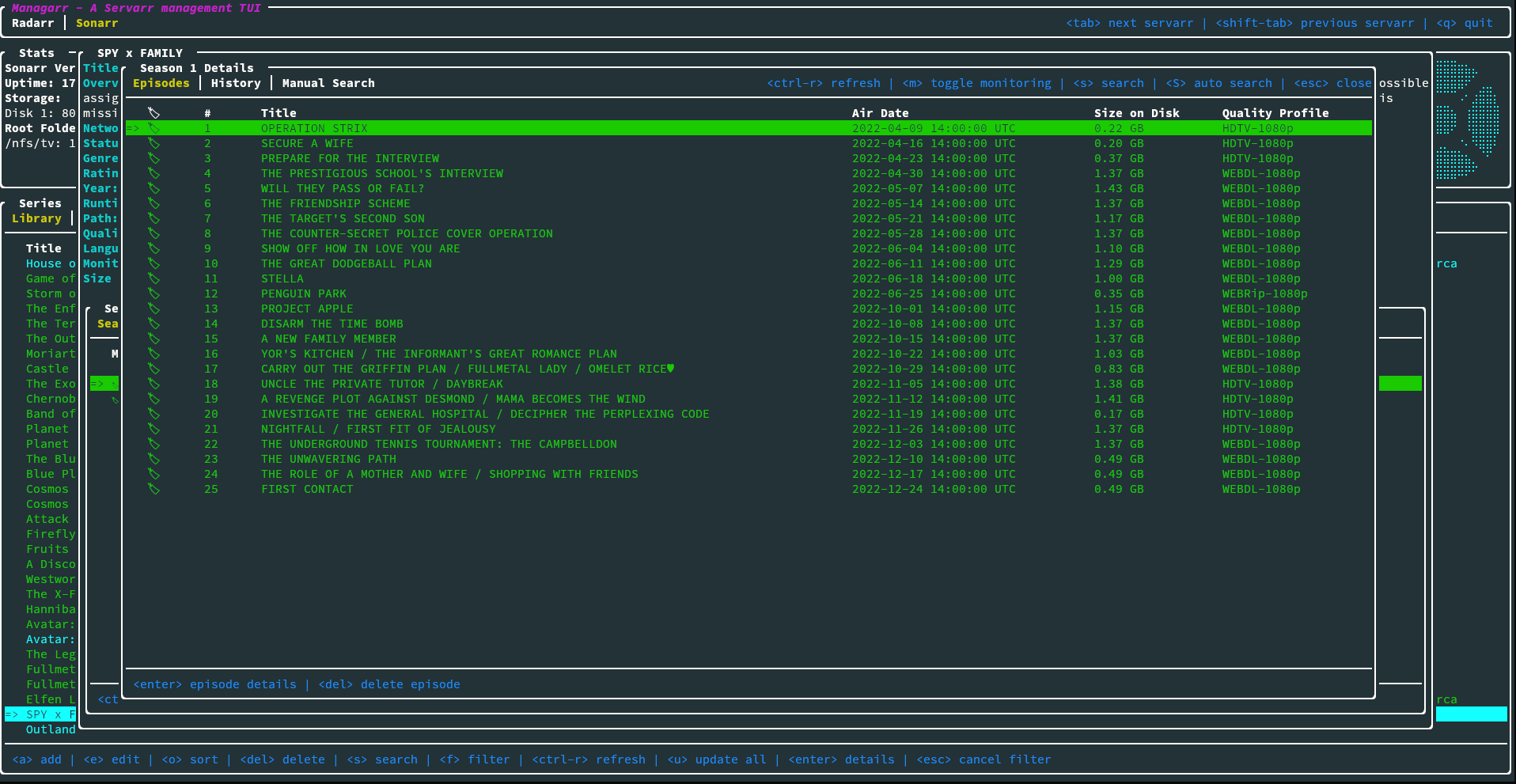
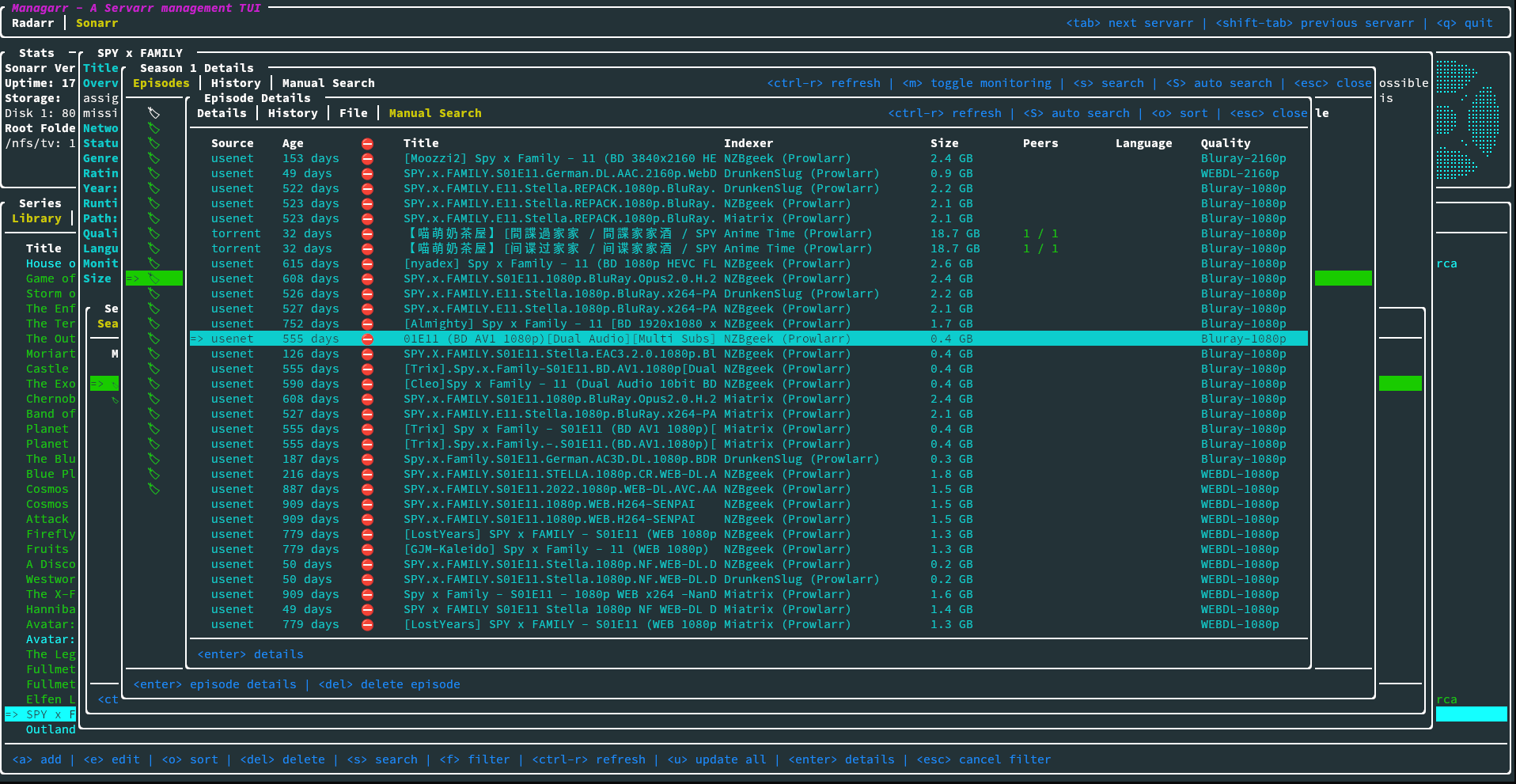
TUI mode gives you an interactive User Interface right inside your terminal window, allowing you to navigate through your Sonarr and Radarr libraries, view details about your series and movies, and perform actions like adding or removing items, all through keyboard shortcuts.

CLI mode lets you execute commands directly from the terminal to manage your Servarr instances without needing to open the TUI. This is great for quick tasks or for integrating with scripts and automation tools.

Screenshots

Try it out for yourself using the in-browser demo!

If you want to try it out for yourself without installing it first, you can use the Managarr demo-site: https://managarr-demo.alexjclarke.com/

What Lidarr operations are supported?

πŸ“š Library Management

  • Artist Library - Browse, search, filter, and sort your music collection
  • Add Artists βž• - Search for new artists and add them with full config options (quality profile, metadata profile, root folder, monitoring options)
  • Edit Artists ✏️ - Tweak artist settings including quality profiles, metadata profiles, tags, and monitoring status
  • Delete Artists πŸ—‘οΈ - Remove artists from your library with optional file deletion
  • Artist Details πŸ” - Get the full picture on any artist:
    • Overview, disambiguation, type, status, genres, and ratings
    • Album list with release dates, track counts, and download status
    • Artist history with detailed event info
    • Manual discography search with release selection and download

πŸ’Ώ Album & Track Management

  • Album Details - Drill into individual albums to see:
    • Track listing with audio info (codec, channels, bitrate, sample rate, bit depth)
    • Album history
    • Manual album search for grabbing specific releases
  • Track Details 🎼 - View individual track info and history
  • Delete Albums - Remove individual albums from your library

⬇️ Downloads & Queue

  • Downloads Tab - Keep an eye on active downloads and manage your queue
  • Blocklist 🚫 - View and manage blocked releases

πŸ“œ History

  • Full History Support - Browse, search, filter, and sort Lidarr event history
  • History Details - Dig into the details of any history event
  • Mark as Failed ❌ - Mark history items as failed

πŸ”Ž Indexers

  • Indexer Management - View, add, edit, and delete indexers
  • Indexer Settings βš™οΈ - Configure global indexer settings
  • Test Indexers πŸ§ͺ - Test individual or all indexers at once

πŸ“ Root Folders

  • Root Folder Management - Add and manage root folders for your music library

πŸ–₯️ System

  • System Status - View Lidarr system info and health checks
  • Tasks - View and trigger system tasks
  • Queued Events - Monitor queued system events
  • Logs πŸ“‹ - Browse system logs
  • Updates πŸ†™ - Check for and view available updates

⌨️ CLI Commands

Full Lidarr CLI support for all the things!

managarr lidarr list artists|albums|tracks|indexers|root-folders|tags|quality-profiles|...
managarr lidarr get artist|album|track|...
managarr lidarr add artist|root-folder|tag|...
managarr lidarr edit artist|indexer|indexer-settings|...
managarr lidarr delete artist|album|root-folder|tag|blocklist-item|...
managarr lidarr search artist|album|...
managarr lidarr refresh artist|downloads|...
managarr lidarr trigger-automatic-search artist|album
managarr lidarr manual-search artist|album

Managarr also supports Radarr and Sonarr!

If you're running the full *arr stack, Managarr has you covered - It supports Radar and Sonarr too, all from the same interface!

This is a passion project so I'd love to hear your feedback, feature requests, or any bug reports you find.


Managarr v0.7.0 has been released with Lidarr support!

What is Managarr?

Managarr is a terminal-based application for managing all your Servarr instances from one place. It provides a user-friendly interface to interact with your media libraries, making it easier to manage your downloads, monitor your artists and albums, and perform various actions directly from the terminal.

It sports two modes: a TUI mode (Text-based User Interface) and a CLI mode (Command Line Interface).

TUI mode gives you an interactive User Interface right inside your terminal window, allowing you to navigate through your Sonarr and Radarr libraries, view details about your series and movies, and perform actions like adding or removing items, all through keyboard shortcuts.

CLI mode lets you execute commands directly from the terminal to manage your Servarr instances without needing to open the TUI. This is great for quick tasks or for integrating with scripts and automation tools.

Screenshots

Try it out for yourself using the in-browser demo!

If you want to try it out for yourself without installing it first, you can use the Managarr demo-site: https://managarr-demo.alexjclarke.com/

What Lidarr operations are supported?

πŸ“š Library Management

  • Artist Library - Browse, search, filter, and sort your music collection
  • Add Artists βž• - Search for new artists and add them with full config options (quality profile, metadata profile, root folder, monitoring options)
  • Edit Artists ✏️ - Tweak artist settings including quality profiles, metadata profiles, tags, and monitoring status
  • Delete Artists πŸ—‘οΈ - Remove artists from your library with optional file deletion
  • Artist Details πŸ” - Get the full picture on any artist:
    • Overview, disambiguation, type, status, genres, and ratings
    • Album list with release dates, track counts, and download status
    • Artist history with detailed event info
    • Manual discography search with release selection and download

πŸ’Ώ Album & Track Management

  • Album Details - Drill into individual albums to see:
    • Track listing with audio info (codec, channels, bitrate, sample rate, bit depth)
    • Album history
    • Manual album search for grabbing specific releases
  • Track Details 🎼 - View individual track info and history
  • Delete Albums - Remove individual albums from your library

⬇️ Downloads & Queue

  • Downloads Tab - Keep an eye on active downloads and manage your queue
  • Blocklist 🚫 - View and manage blocked releases

πŸ“œ History

  • Full History Support - Browse, search, filter, and sort Lidarr event history
  • History Details - Dig into the details of any history event
  • Mark as Failed ❌ - Mark history items as failed

πŸ”Ž Indexers

  • Indexer Management - View, add, edit, and delete indexers
  • Indexer Settings βš™οΈ - Configure global indexer settings
  • Test Indexers πŸ§ͺ - Test individual or all indexers at once

πŸ“ Root Folders

  • Root Folder Management - Add and manage root folders for your music library

πŸ–₯️ System

  • System Status - View Lidarr system info and health checks
  • Tasks - View and trigger system tasks
  • Queued Events - Monitor queued system events
  • Logs πŸ“‹ - Browse system logs
  • Updates πŸ†™ - Check for and view available updates

⌨️ CLI Commands

Full Lidarr CLI support for all the things!

managarr lidarr list artists|albums|tracks|indexers|root-folders|tags|quality-profiles|...
managarr lidarr get artist|album|track|...
managarr lidarr add artist|root-folder|tag|...
managarr lidarr edit artist|indexer|indexer-settings|...
managarr lidarr delete artist|album|root-folder|tag|blocklist-item|...
managarr lidarr search artist|album|...
managarr lidarr refresh artist|downloads|...
managarr lidarr trigger-automatic-search artist|album
managarr lidarr manual-search artist|album

Managarr also supports Radarr and Sonarr!

If you're running the full *arr stack, Managarr has you covered - It supports Radar and Sonarr too, all from the same interface!

This is a passion project so I'd love to hear your feedback, feature requests, or any bug reports you find.


Managarr v0.7.0 has been released with Lidarr support!

What is Managarr?

Managarr is a terminal-based application for managing all your Servarr instances from one place. It provides a user-friendly interface to interact with your media libraries, making it easier to manage your downloads, monitor your artists and albums, and perform various actions directly from the terminal.

It sports two modes: a TUI mode (Text-based User Interface) and a CLI mode (Command Line Interface).

TUI mode gives you an interactive User Interface right inside your terminal window, allowing you to navigate through your Sonarr and Radarr libraries, view details about your series and movies, and perform actions like adding or removing items, all through keyboard shortcuts.

CLI mode lets you execute commands directly from the terminal to manage your Servarr instances without needing to open the TUI. This is great for quick tasks or for integrating with scripts and automation tools.

Screenshots

Try it out for yourself using the in-browser demo!

If you want to try it out for yourself without installing it first, you can use the Managarr demo-site: https://managarr-demo.alexjclarke.com/

What Lidarr operations are supported?

πŸ“š Library Management

  • Artist Library - Browse, search, filter, and sort your music collection
  • Add Artists βž• - Search for new artists and add them with full config options (quality profile, metadata profile, root folder, monitoring options)
  • Edit Artists ✏️ - Tweak artist settings including quality profiles, metadata profiles, tags, and monitoring status
  • Delete Artists πŸ—‘οΈ - Remove artists from your library with optional file deletion
  • Artist Details πŸ” - Get the full picture on any artist:
    • Overview, disambiguation, type, status, genres, and ratings
    • Album list with release dates, track counts, and download status
    • Artist history with detailed event info
    • Manual discography search with release selection and download

πŸ’Ώ Album & Track Management

  • Album Details - Drill into individual albums to see:
    • Track listing with audio info (codec, channels, bitrate, sample rate, bit depth)
    • Album history
    • Manual album search for grabbing specific releases
  • Track Details 🎼 - View individual track info and history
  • Delete Albums - Remove individual albums from your library

⬇️ Downloads & Queue

  • Downloads Tab - Keep an eye on active downloads and manage your queue
  • Blocklist 🚫 - View and manage blocked releases

πŸ“œ History

  • Full History Support - Browse, search, filter, and sort Lidarr event history
  • History Details - Dig into the details of any history event
  • Mark as Failed ❌ - Mark history items as failed

πŸ”Ž Indexers

  • Indexer Management - View, add, edit, and delete indexers
  • Indexer Settings βš™οΈ - Configure global indexer settings
  • Test Indexers πŸ§ͺ - Test individual or all indexers at once

πŸ“ Root Folders

  • Root Folder Management - Add and manage root folders for your music library

πŸ–₯️ System

  • System Status - View Lidarr system info and health checks
  • Tasks - View and trigger system tasks
  • Queued Events - Monitor queued system events
  • Logs πŸ“‹ - Browse system logs
  • Updates πŸ†™ - Check for and view available updates

⌨️ CLI Commands

Full Lidarr CLI support for all the things!

managarr lidarr list artists|albums|tracks|indexers|root-folders|tags|quality-profiles|...
managarr lidarr get artist|album|track|...
managarr lidarr add artist|root-folder|tag|...
managarr lidarr edit artist|indexer|indexer-settings|...
managarr lidarr delete artist|album|root-folder|tag|blocklist-item|...
managarr lidarr search artist|album|...
managarr lidarr refresh artist|downloads|...
managarr lidarr trigger-automatic-search artist|album
managarr lidarr manual-search artist|album

Managarr also supports Radarr and Sonarr!

If you're running the full *arr stack, Managarr has you covered - It supports Radar and Sonarr too, all from the same interface!

This is a passion project so I'd love to hear your feedback, feature requests, or any bug reports you find.


Managarr v0.7.0 has been released with Lidarr support!

What is Managarr?

Managarr is a terminal-based application for managing all your Servarr instances from one place. It provides a user-friendly interface to interact with your media libraries, making it easier to manage your downloads, monitor your artists and albums, and perform various actions directly from the terminal.

It sports two modes: a TUI mode (Text-based User Interface) and a CLI mode (Command Line Interface).

TUI mode gives you an interactive User Interface right inside your terminal window, allowing you to navigate through your Sonarr and Radarr libraries, view details about your series and movies, and perform actions like adding or removing items, all through keyboard shortcuts.

CLI mode lets you execute commands directly from the terminal to manage your Servarr instances without needing to open the TUI. This is great for quick tasks or for integrating with scripts and automation tools.

Screenshots

Try it out for yourself using the in-browser demo!

If you want to try it out for yourself without installing it first, you can use the Managarr demo-site: https://managarr-demo.alexjclarke.com/

What Lidarr operations are supported?

πŸ“š Library Management

  • Artist Library - Browse, search, filter, and sort your music collection
  • Add Artists βž• - Search for new artists and add them with full config options (quality profile, metadata profile, root folder, monitoring options)
  • Edit Artists ✏️ - Tweak artist settings including quality profiles, metadata profiles, tags, and monitoring status
  • Delete Artists πŸ—‘οΈ - Remove artists from your library with optional file deletion
  • Artist Details πŸ” - Get the full picture on any artist:
    • Overview, disambiguation, type, status, genres, and ratings
    • Album list with release dates, track counts, and download status
    • Artist history with detailed event info
    • Manual discography search with release selection and download

πŸ’Ώ Album & Track Management

  • Album Details - Drill into individual albums to see:
    • Track listing with audio info (codec, channels, bitrate, sample rate, bit depth)
    • Album history
    • Manual album search for grabbing specific releases
  • Track Details 🎼 - View individual track info and history
  • Delete Albums - Remove individual albums from your library

⬇️ Downloads & Queue

  • Downloads Tab - Keep an eye on active downloads and manage your queue
  • Blocklist 🚫 - View and manage blocked releases

πŸ“œ History

  • Full History Support - Browse, search, filter, and sort Lidarr event history
  • History Details - Dig into the details of any history event
  • Mark as Failed ❌ - Mark history items as failed

πŸ”Ž Indexers

  • Indexer Management - View, add, edit, and delete indexers
  • Indexer Settings βš™οΈ - Configure global indexer settings
  • Test Indexers πŸ§ͺ - Test individual or all indexers at once

πŸ“ Root Folders

  • Root Folder Management - Add and manage root folders for your music library

πŸ–₯️ System

  • System Status - View Lidarr system info and health checks
  • Tasks - View and trigger system tasks
  • Queued Events - Monitor queued system events
  • Logs πŸ“‹ - Browse system logs
  • Updates πŸ†™ - Check for and view available updates

⌨️ CLI Commands

Full Lidarr CLI support for all the things!

managarr lidarr list artists|albums|tracks|indexers|root-folders|tags|quality-profiles|...
managarr lidarr get artist|album|track|...
managarr lidarr add artist|root-folder|tag|...
managarr lidarr edit artist|indexer|indexer-settings|...
managarr lidarr delete artist|album|root-folder|tag|blocklist-item|...
managarr lidarr search artist|album|...
managarr lidarr refresh artist|downloads|...
managarr lidarr trigger-automatic-search artist|album
managarr lidarr manual-search artist|album

Managarr also supports Radarr and Sonarr!

If you're running the full *arr stack, Managarr has you covered - It supports Radar and Sonarr too, all from the same interface!

This is a passion project so I'd love to hear your feedback, feature requests, or any bug reports you find.


Managarr v0.7.0 has been released with Lidarr support!

What is Managarr?

Managarr is a terminal-based application for managing all your Servarr instances from one place. It provides a user-friendly interface to interact with your media libraries, making it easier to manage your downloads, monitor your artists and albums, and perform various actions directly from the terminal.

It sports two modes: a TUI mode (Text-based User Interface) and a CLI mode (Command Line Interface).

TUI mode gives you an interactive User Interface right inside your terminal window, allowing you to navigate through your Sonarr and Radarr libraries, view details about your series and movies, and perform actions like adding or removing items, all through keyboard shortcuts.

CLI mode lets you execute commands directly from the terminal to manage your Servarr instances without needing to open the TUI. This is great for quick tasks or for integrating with scripts and automation tools.

Screenshots

Try it out for yourself using the in-browser demo!

If you want to try it out for yourself without installing it first, you can use the Managarr demo-site: https://managarr-demo.alexjclarke.com/

What Lidarr operations are supported?

πŸ“š Library Management

  • Artist Library - Browse, search, filter, and sort your music collection
  • Add Artists βž• - Search for new artists and add them with full config options (quality profile, metadata profile, root folder, monitoring options)
  • Edit Artists ✏️ - Tweak artist settings including quality profiles, metadata profiles, tags, and monitoring status
  • Delete Artists πŸ—‘οΈ - Remove artists from your library with optional file deletion
  • Artist Details πŸ” - Get the full picture on any artist:
    • Overview, disambiguation, type, status, genres, and ratings
    • Album list with release dates, track counts, and download status
    • Artist history with detailed event info
    • Manual discography search with release selection and download

πŸ’Ώ Album & Track Management

  • Album Details - Drill into individual albums to see:
    • Track listing with audio info (codec, channels, bitrate, sample rate, bit depth)
    • Album history
    • Manual album search for grabbing specific releases
  • Track Details 🎼 - View individual track info and history
  • Delete Albums - Remove individual albums from your library

⬇️ Downloads & Queue

  • Downloads Tab - Keep an eye on active downloads and manage your queue
  • Blocklist 🚫 - View and manage blocked releases

πŸ“œ History

  • Full History Support - Browse, search, filter, and sort Lidarr event history
  • History Details - Dig into the details of any history event
  • Mark as Failed ❌ - Mark history items as failed

πŸ”Ž Indexers

  • Indexer Management - View, add, edit, and delete indexers
  • Indexer Settings βš™οΈ - Configure global indexer settings
  • Test Indexers πŸ§ͺ - Test individual or all indexers at once

πŸ“ Root Folders

  • Root Folder Management - Add and manage root folders for your music library

πŸ–₯️ System

  • System Status - View Lidarr system info and health checks
  • Tasks - View and trigger system tasks
  • Queued Events - Monitor queued system events
  • Logs πŸ“‹ - Browse system logs
  • Updates πŸ†™ - Check for and view available updates

⌨️ CLI Commands

Full Lidarr CLI support for all the things!

managarr lidarr list artists|albums|tracks|indexers|root-folders|tags|quality-profiles|...
managarr lidarr get artist|album|track|...
managarr lidarr add artist|root-folder|tag|...
managarr lidarr edit artist|indexer|indexer-settings|...
managarr lidarr delete artist|album|root-folder|tag|blocklist-item|...
managarr lidarr search artist|album|...
managarr lidarr refresh artist|downloads|...
managarr lidarr trigger-automatic-search artist|album
managarr lidarr manual-search artist|album

Managarr also supports Radarr and Sonarr!

If you're running the full *arr stack, Managarr has you covered - It supports Radar and Sonarr too, all from the same interface!

This is a passion project so I'd love to hear your feedback, feature requests, or any bug reports you find.


Managarr v0.7.0 has been released with Lidarr support!

What is Managarr?

Managarr is a terminal-based application for managing all your Servarr instances from one place. It provides a user-friendly interface to interact with your media libraries, making it easier to manage your downloads, monitor your artists and albums, and perform various actions directly from the terminal.

It sports two modes: a TUI mode (Text-based User Interface) and a CLI mode (Command Line Interface).

TUI mode gives you an interactive User Interface right inside your terminal window, allowing you to navigate through your Sonarr and Radarr libraries, view details about your series and movies, and perform actions like adding or removing items, all through keyboard shortcuts.

CLI mode lets you execute commands directly from the terminal to manage your Servarr instances without needing to open the TUI. This is great for quick tasks or for integrating with scripts and automation tools.

Screenshots

Try it out for yourself using the in-browser demo!

If you want to try it out for yourself without installing it first, you can use the Managarr demo-site: https://managarr-demo.alexjclarke.com/

What Lidarr operations are supported?

πŸ“š Library Management

  • Artist Library - Browse, search, filter, and sort your music collection
  • Add Artists βž• - Search for new artists and add them with full config options (quality profile, metadata profile, root folder, monitoring options)
  • Edit Artists ✏️ - Tweak artist settings including quality profiles, metadata profiles, tags, and monitoring status
  • Delete Artists πŸ—‘οΈ - Remove artists from your library with optional file deletion
  • Artist Details πŸ” - Get the full picture on any artist:
    • Overview, disambiguation, type, status, genres, and ratings
    • Album list with release dates, track counts, and download status
    • Artist history with detailed event info
    • Manual discography search with release selection and download

πŸ’Ώ Album & Track Management

  • Album Details - Drill into individual albums to see:
    • Track listing with audio info (codec, channels, bitrate, sample rate, bit depth)
    • Album history
    • Manual album search for grabbing specific releases
  • Track Details 🎼 - View individual track info and history
  • Delete Albums - Remove individual albums from your library

⬇️ Downloads & Queue

  • Downloads Tab - Keep an eye on active downloads and manage your queue
  • Blocklist 🚫 - View and manage blocked releases

πŸ“œ History

  • Full History Support - Browse, search, filter, and sort Lidarr event history
  • History Details - Dig into the details of any history event
  • Mark as Failed ❌ - Mark history items as failed

πŸ”Ž Indexers

  • Indexer Management - View, add, edit, and delete indexers
  • Indexer Settings βš™οΈ - Configure global indexer settings
  • Test Indexers πŸ§ͺ - Test individual or all indexers at once

πŸ“ Root Folders

  • Root Folder Management - Add and manage root folders for your music library

πŸ–₯️ System

  • System Status - View Lidarr system info and health checks
  • Tasks - View and trigger system tasks
  • Queued Events - Monitor queued system events
  • Logs πŸ“‹ - Browse system logs
  • Updates πŸ†™ - Check for and view available updates

⌨️ CLI Commands

Full Lidarr CLI support for all the things!

managarr lidarr list artists|albums|tracks|indexers|root-folders|tags|quality-profiles|...
managarr lidarr get artist|album|track|...
managarr lidarr add artist|root-folder|tag|...
managarr lidarr edit artist|indexer|indexer-settings|...
managarr lidarr delete artist|album|root-folder|tag|blocklist-item|...
managarr lidarr search artist|album|...
managarr lidarr refresh artist|downloads|...
managarr lidarr trigger-automatic-search artist|album
managarr lidarr manual-search artist|album

Managarr also supports Radarr and Sonarr!

If you're running the full *arr stack, Managarr has you covered - It supports Radar and Sonarr too, all from the same interface!

This is a passion project so I'd love to hear your feedback, feature requests, or any bug reports you find.


Managarr v0.7.0 has been released with Lidarr support!

What is Managarr?

Managarr is a terminal-based application for managing all your Servarr instances from one place. It provides a user-friendly interface to interact with your media libraries, making it easier to manage your downloads, monitor your artists and albums, and perform various actions directly from the terminal.

It sports two modes: a TUI mode (Text-based User Interface) and a CLI mode (Command Line Interface).

TUI mode gives you an interactive User Interface right inside your terminal window, allowing you to navigate through your Sonarr and Radarr libraries, view details about your series and movies, and perform actions like adding or removing items, all through keyboard shortcuts.

CLI mode lets you execute commands directly from the terminal to manage your Servarr instances without needing to open the TUI. This is great for quick tasks or for integrating with scripts and automation tools.

Screenshots

Try it out for yourself using the in-browser demo!

If you want to try it out for yourself without installing it first, you can use the Managarr demo-site: https://managarr-demo.alexjclarke.com/

What Lidarr operations are supported?

πŸ“š Library Management

  • Artist Library - Browse, search, filter, and sort your music collection
  • Add Artists βž• - Search for new artists and add them with full config options (quality profile, metadata profile, root folder, monitoring options)
  • Edit Artists ✏️ - Tweak artist settings including quality profiles, metadata profiles, tags, and monitoring status
  • Delete Artists πŸ—‘οΈ - Remove artists from your library with optional file deletion
  • Artist Details πŸ” - Get the full picture on any artist:
    • Overview, disambiguation, type, status, genres, and ratings
    • Album list with release dates, track counts, and download status
    • Artist history with detailed event info
    • Manual discography search with release selection and download

πŸ’Ώ Album & Track Management

  • Album Details - Drill into individual albums to see:
    • Track listing with audio info (codec, channels, bitrate, sample rate, bit depth)
    • Album history
    • Manual album search for grabbing specific releases
  • Track Details 🎼 - View individual track info and history
  • Delete Albums - Remove individual albums from your library

⬇️ Downloads & Queue

  • Downloads Tab - Keep an eye on active downloads and manage your queue
  • Blocklist 🚫 - View and manage blocked releases

πŸ“œ History

  • Full History Support - Browse, search, filter, and sort Lidarr event history
  • History Details - Dig into the details of any history event
  • Mark as Failed ❌ - Mark history items as failed

πŸ”Ž Indexers

  • Indexer Management - View, add, edit, and delete indexers
  • Indexer Settings βš™οΈ - Configure global indexer settings
  • Test Indexers πŸ§ͺ - Test individual or all indexers at once

πŸ“ Root Folders

  • Root Folder Management - Add and manage root folders for your music library

πŸ–₯️ System

  • System Status - View Lidarr system info and health checks
  • Tasks - View and trigger system tasks
  • Queued Events - Monitor queued system events
  • Logs πŸ“‹ - Browse system logs
  • Updates πŸ†™ - Check for and view available updates

⌨️ CLI Commands

Full Lidarr CLI support for all the things!

managarr lidarr list artists|albums|tracks|indexers|root-folders|tags|quality-profiles|...
managarr lidarr get artist|album|track|...
managarr lidarr add artist|root-folder|tag|...
managarr lidarr edit artist|indexer|indexer-settings|...
managarr lidarr delete artist|album|root-folder|tag|blocklist-item|...
managarr lidarr search artist|album|...
managarr lidarr refresh artist|downloads|...
managarr lidarr trigger-automatic-search artist|album
managarr lidarr manual-search artist|album

Managarr also supports Radarr and Sonarr!

If you're running the full *arr stack, Managarr has you covered - It supports Radar and Sonarr too, all from the same interface!

This is a passion project so I'd love to hear your feedback, feature requests, or any bug reports you find.


Managarr v0.7.0 has been released with Lidarr support!

What is Managarr?

Managarr is a terminal-based application for managing all your Servarr instances from one place. It provides a user-friendly interface to interact with your media libraries, making it easier to manage your downloads, monitor your artists and albums, and perform various actions directly from the terminal.

It sports two modes: a TUI mode (Text-based User Interface) and a CLI mode (Command Line Interface).

TUI mode gives you an interactive User Interface right inside your terminal window, allowing you to navigate through your Sonarr and Radarr libraries, view details about your series and movies, and perform actions like adding or removing items, all through keyboard shortcuts.

CLI mode lets you execute commands directly from the terminal to manage your Servarr instances without needing to open the TUI. This is great for quick tasks or for integrating with scripts and automation tools.

Screenshots

Try it out for yourself using the in-browser demo!

If you want to try it out for yourself without installing it first, you can use the Managarr demo-site: https://managarr-demo.alexjclarke.com/

What Lidarr operations are supported?

πŸ“š Library Management

  • Artist Library - Browse, search, filter, and sort your music collection
  • Add Artists βž• - Search for new artists and add them with full config options (quality profile, metadata profile, root folder, monitoring options)
  • Edit Artists ✏️ - Tweak artist settings including quality profiles, metadata profiles, tags, and monitoring status
  • Delete Artists πŸ—‘οΈ - Remove artists from your library with optional file deletion
  • Artist Details πŸ” - Get the full picture on any artist:
    • Overview, disambiguation, type, status, genres, and ratings
    • Album list with release dates, track counts, and download status
    • Artist history with detailed event info
    • Manual discography search with release selection and download

πŸ’Ώ Album & Track Management

  • Album Details - Drill into individual albums to see:
    • Track listing with audio info (codec, channels, bitrate, sample rate, bit depth)
    • Album history
    • Manual album search for grabbing specific releases
  • Track Details 🎼 - View individual track info and history
  • Delete Albums - Remove individual albums from your library

⬇️ Downloads & Queue

  • Downloads Tab - Keep an eye on active downloads and manage your queue
  • Blocklist 🚫 - View and manage blocked releases

πŸ“œ History

  • Full History Support - Browse, search, filter, and sort Lidarr event history
  • History Details - Dig into the details of any history event
  • Mark as Failed ❌ - Mark history items as failed

πŸ”Ž Indexers

  • Indexer Management - View, add, edit, and delete indexers
  • Indexer Settings βš™οΈ - Configure global indexer settings
  • Test Indexers πŸ§ͺ - Test individual or all indexers at once

πŸ“ Root Folders

  • Root Folder Management - Add and manage root folders for your music library

πŸ–₯️ System

  • System Status - View Lidarr system info and health checks
  • Tasks - View and trigger system tasks
  • Queued Events - Monitor queued system events
  • Logs πŸ“‹ - Browse system logs
  • Updates πŸ†™ - Check for and view available updates

⌨️ CLI Commands

Full Lidarr CLI support for all the things!

managarr lidarr list artists|albums|tracks|indexers|root-folders|tags|quality-profiles|...
managarr lidarr get artist|album|track|...
managarr lidarr add artist|root-folder|tag|...
managarr lidarr edit artist|indexer|indexer-settings|...
managarr lidarr delete artist|album|root-folder|tag|blocklist-item|...
managarr lidarr search artist|album|...
managarr lidarr refresh artist|downloads|...
managarr lidarr trigger-automatic-search artist|album
managarr lidarr manual-search artist|album

Managarr also supports Radarr and Sonarr!

If you're running the full *arr stack, Managarr has you covered - It supports Radar and Sonarr too, all from the same interface!

This is a passion project so I'd love to hear your feedback, feature requests, or any bug reports you find.

[–] aclarke@lemmy.world 1 points 2 months ago* (last edited 2 months ago) (1 children)

Thanks so much for the other stuff you use! I've been using bm for years, but I haven't used mkcd, so I'm definitely going to add that.

I'm going to give your library, config, and AoC a good look because that's exactly what I was hoping for in this conversation! :)

In general: The only time I add it to my ~/.bashrc is when it's either an alias for something simple, or a very simple function. Otherwise, anything that requires more legwork or is bigger than a few lines, I put in dtools. I used to put it all in my ~/.bashrc but that honestly became kind of cumbersome when I have different configs on different servers, or machines for work vs personal, etc. And sometimes the exports would differ making functions work differently and I didn't want to just have to copy that section of my ~/.bashrc as well every time something updated, hence why I created the dtools repo!

To respond to your other comments, I'm going to do my best to respond in the order they show up:

printf vs echo through bold() vs $'\e[1m'

The dtools script is actually compiled, not written by me. So in the vast majority of the project, my code is all in the src directory, not in the dtools script. In fact, my repo without compilation consists of only 3k lines. The compiled code in the script then makes up the completions, coloring, some error handling, validations, filters, help messages, constraints (like conflicting flags), etc.

So many of the echos you see are from the bashly framework, not my code. I often use heredocs for longer or multiline strings (being SUPER careful when using <<-EOF to make sure my damn editor is using TABs...that's such a nightmare otherwise πŸ˜‚ ).

If you look through my code in particular, you'll see I use many of these bash-isms you've mentioned!

So the One vs Many comment is exactly how the repo works! Each subcommand is its own directory and file. So, for example: All dtools aws commands are in the src/commands/aws directory. And any further subcommands like dtools aws secretsmanager are in another subdirectory where each command has its own individual script!

Bashisms

I'm familiar with many of the bashisms you mentioned except the var="$(< file)" one, that's awesome! I've been trying to migrate away from using cat to just output file contents and use more direct, purpose methods that are often built into tools (like jq '.[]' file.json instead of cat file.json | jq '.[]'). However, I'll say that when I'm trying to read each line into an iterable array, I often use readarray too.

grep | awk | sed

I've been trying for years to get more people to look into awk because it's amazing! It's so undervalued! sed takes some getting used to with the pattern and hold space but it's worth the initial suffering πŸ˜›

Shellcheck

I've got my Helix editor set up with Shellcheck! It's awesome! You'll notice if you look at my code directly that there's a number of places I have to do # shellcheck disable=SC2154 (a variable is referencing an undefined value). This is because the framework creates and passes those variables to my scripts for me.

A Loose Offer

You seem a lot like me in that you do a LOT of bash scripting! So I'll admit to the fact that I've looked at the compiled code and noted that the most important code is mine, and while there's a lot of things going on in the compiled script, I agree with most of it. But I've also been a bit concerned about how often it's spawning subshells when it doesn't have to.

I think I can fix some of them with associative arrays if I add a minimum bash version requirement in my config, but I've honestly never tried. I'll check that out now!

Since you make a solid point about a lot of this that should maybe be updated in the Bashly framework, maybe we should work together to update the framework to have better conventions like you've mentioned?


So I'm sure we've all spent time writing scripts or figuring out CLIs for that one project we're working on, and then kind of go on to forget what we did. Then, when another project comes along later, you wish you had that script again so you could see how you did that thing you did.

Personally, I used to just check random scripts into a repo as a kind of "archive" of all my scripts. But I wanted a better way to organize and use these things.

For years I've been building and collecting these scripts into a CLI that I call Devtools to make it so that each script is a subcommand. I've had a lot of my friends and coworkers ask me to open-source it so they could use it and see how some things are done in Bash, what tools I use, etc. So...here's that CLI!


But what I'd honestly like is more...

So what are your useful scripts you've written? Or what's that script you wrote years ago that you now swear by? I want to grow this collection and feed the addiction!


So I'm sure we've all spent time writing scripts or figuring out CLIs for that one project we're working on, and then kind of go on to forget what we did. Then, when another project comes along later, you wish you had that script again so you could see how you did that thing you did.

Personally, I used to just check random scripts into a repo as a kind of "archive" of all my scripts. But I wanted a better way to organize and use these things.

For years I've been building and collecting these scripts into a CLI that I call Devtools to make it so that each script is a subcommand.

I've had a lot of my friends and coworkers ask me to open-source it so they could use it and see how some things are done in Bash, what tools I use, etc. So...here's that CLI!


But what I'd honestly like is more...

So what are your useful scripts or CLIs you've built? Or what's that script you wrote years ago that you now swear by? Or what's that one application you use daily that just makes your life infinitely easier! I want to grow this collection and feed the addiction!

[–] aclarke@lemmy.world 3 points 3 months ago
[–] aclarke@lemmy.world 1 points 3 months ago (2 children)

Model Context Protocol. It's basically APIs designed specifically for AIs to use to extend their capabilities. Think of it like, instead of building tools for models to call yourself, the creators of your favorite services make the tools for you and expose them as APIs. All you have to do it point the model at their API to use it.

view more: next β€Ί