Computer Keyboards

323 readers
1 users here now

hardware, customization and typing

founded 5 years ago
MODERATORS
1


Some background. Typing on game consoles sucks most of the time. Some games are well enough made that one player can type without hijacking everyone's controls in local multiplayer, but for the most part you still type by selecting letters from a table, either in alphabetical order or QWERTY (at least for English). This was how we typed on consoles way back in the 1980s. This is still how most games make us type 40 years later.

The only game i've seen that does this better is Scribblenauts Showdown, the PlayStation version. You type in it by selecting a group of letters with one stick (or dpad/face buttons) and then select a letter from that group with the other stick. I think, it's been a couple years since i last played. Anyway, this is a reasonably comfortable way to type. It's not as good as a real keyboard but it's a lot better than the standard method.

I want to know if this design can be applied to other places. For example, TV remotes where typing technology is (in my experience) still about where it was on the NES, or phones where people might prefer a physical keyboard with larger keys to a tiny touchscreen board. Also devices where being able to type to search would be nice, but there's not room for a full keyboard, like non-touchscreen music players and ereaders.

So i figured, i have a PlayStation controller and a computer with Kanata set up. It should be simple enough to make a layout using my controller's thumbsticks and a lot of layers. So over the course of a couple hours i did just that.

This is the layout i designed, based on English letter and bigram frequency. Because it's a 2-finger layout (technically 4, with the shoulder buttons) SFBs are pretty unavoidable. Instead i focused on rolls. If i'm holding L← and press R← to type "t", i should be able to then slide R up and right over "h" & "e" to type "the" in a single fluid motion. It should also be possible to type "t" this same way then move L (the stick defining the current layer/letter group for R) from up to right, so the key under the right stick's position changes from "t" to "o" and i can type "to" without moving R between the letters.

I don't know if that's how it works, because AntiMicroX, the program i use to convert controller inputs to keyboard inputs to make other programs interpret them at all, overrides Kanata, the program i use to make custom keyboard layouts. It might be possible to skip AntiMicroX and make Kanata take controller inputs, but i don't know how. I'll be back if that changes.

The layout itself probably isn't great because it is only a first try. My other ideas (which i decided not to code because i don't have a way to try them) were 1. simple alphabetical, ignoring digraphs but having all letters and some punctuation on the base layer, and also leaving room for numbers; and 2. one shot layers where you select one of 8 key groups that are set up as one shot layers, then each layer has 8 keys because both sticks are free to select letters. I think that last one is closest to how Scribblenauts does it.

The file for this layout, for anyone curious about it, is on my website. https://indigogolem.neocities.org/inventions/keyboard

2


I know none of these are particularly good for any number of fingers. I normally do use better custom layouts, but my new phone only has QWERTY, AZERTY, and QWERTZ as options. Installing an app for a different keyboard layout is not an option. Do people who use these on their phones have any input as to which, if any, is best?

3
 
 
4


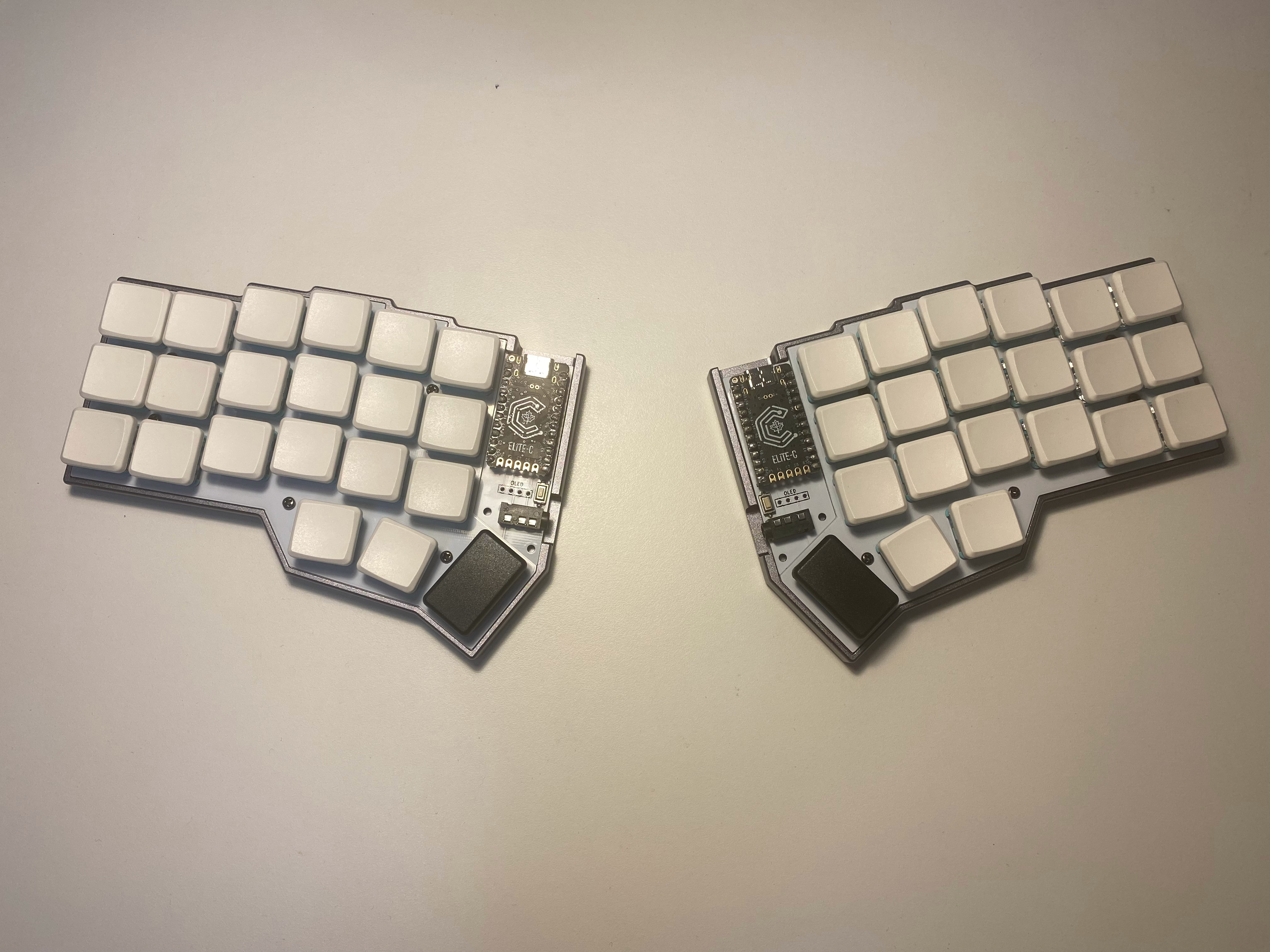
after five days, it's finally ready: split, ortholinear layout, robin choc switches and cool special low profile keycaps 😎

story as a spoiler, bc it's rather long, only if you have nothing to do lol

i've been eyeing this keyboard for a couple of years, pcbs were semi-available, but the cases, especially the cool metal ones were pretty much never available, always out of stock, or in a group buy that i always missed

so when I finally got a chance to buy one, i did so immediately

sadly the seller was in the us, so of course the shipping to europe was like 60 dollars, plus import tax, and this isn't to me, this is to a friend in europe (bc of course they don't ship to russia), who later brought it to me during a visit

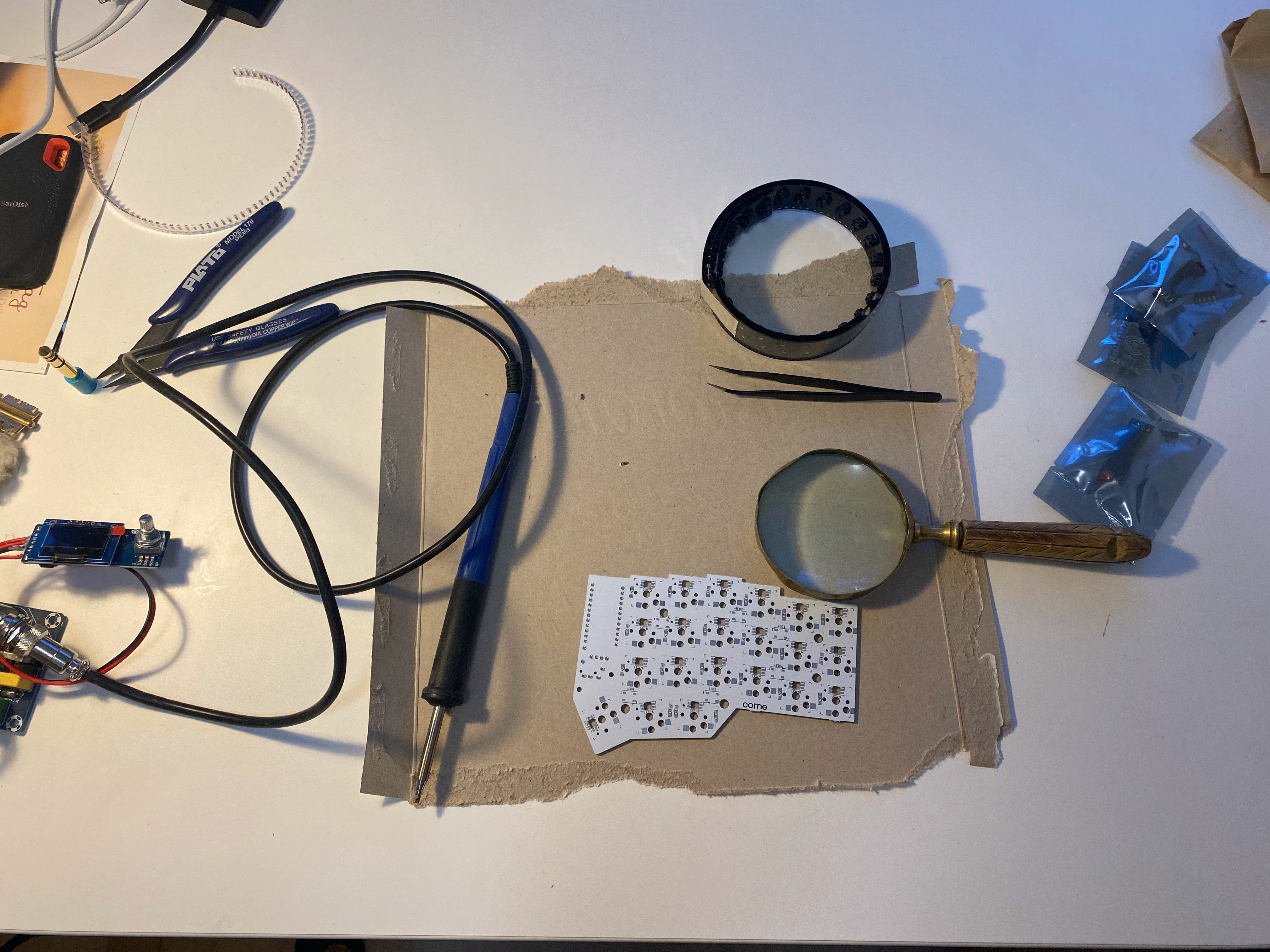
once unpacked and ready to solder (the keyboard wasn't assembled, you have to do it yourself), i suddenly realized that the main controller arrived with a set of pins to be permanently soldered to the pcb, which is suboptimal, as desoldering the controllers is virtually impossible, and a broken controller, a broken pcb, or anything else wrong would mean i'd have to get an entirely new pcb half

anyway, the recommended approach is to use sockets, which turned out to be pretty hard to get

i spent the first day going to major semi-electronics specialized stores, asking them whether they have something close to what i needed, they sold me components which seemed right, but once home and having checked them, turned out to be incorrect

on day two i went to the largest electronics specializing store in the city, to all three of their locations, one of them was closed early bc of holiday season, second sold me something which worked, but not very well, and last one told me they didn't have anything

ok, last resort, i went to the "radio parts market", which is absolutely enormous, like 15 storeys high, huge floors, literally thousands of small shops, and you can very easily get lost and wander for a long time, literally like a labyrinth, all located on the outskirts of the city

anyway, after traveling there, i spent maybe a couple of hours walking among the knee high piles of soviet-era electronic components, asking around whether they have what I needed, until some kind shop owner sold me the correct sockets, only for me to learn that the pins that were supposed to be inserted into these sockets were of non-standard size and shape (circular and smaller than regular square shaped ones), which are apparently rarer than gold

everybody i asked for them sent me to some mysterious tiny shop, located on the underground floor, for which you need to navigate quite a lot to get to, anyway, once arrived, i catched the owner literally half-closing the propective anti-theft garage-door-esque thingy to protect showcases usually, asked him whether they had such pins, only to learn they didn't

i was in a dead end, it was like 8pm, pretty dark, -20 outside as i exit the market, unsure what to do, so i just got to the nearest cafe and pondered what i should do

nothing came up, so i just went home, dug up some diodes, cut some wire off of them, and DIYed the pins that fit the sockets out of them

a little bit of soldering later, i learned that apparently i soldered the microcontrollers incorrectly, upside down that is, probably because the atmega chip powering them and other boards such as arduino nano, is supposed to be facing up in arduino nano (which i've soldered many times before), therefore i just intuitively soldered the pins to the controller, so that the atmega chip faces up, which is incorrect

i desoldered the pins, soldered new ones again, only then to realzie that if I heated the solder and pushed the legs through the holes in the microcontroller, the legs would get covered in solder, thus potentially compromising the contact with the sockets, so I had to desolder the legs once again, solder these legs again, now to the other side, and spent quite some time reheating the solder and making small maneuvers to the legs in order to allign them correctly, so that they're insertable into the sockets

there were a lot of other minor troubles, like accidentally starting to insert the switches into the pcb without putting the plate in-between them, thus having to later de-insert all the switches, but all in all, it came out successfully, even the controllers survived all that resoldering
5
 
 
6
7


"Essentially the greater the deviation from Qwerty, the greater the potential benefits."

8
9


A problem with Keyhero

I've been using Keyhero for some time now. It looks ok, and it's nice to be able to operate (skip quotes, start new ones) without using your mouse. And the quotes can be interesting.

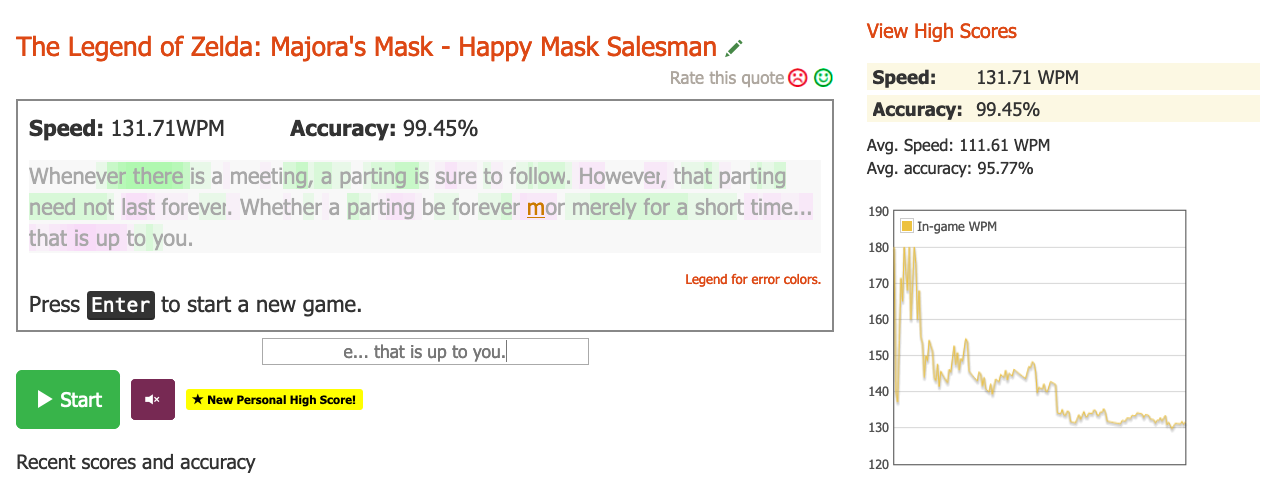
At some point I noticed that my typing speed progress basically plateaued. Then I noticed that Keyhero either has a really weird algorithm calculating typing speeds, or is simply misreporting them.

As you can see in the screenshot, the average speed is stated as 111 wpm, which is a speed that I literally never went below! Looking at the graph you can see that the speed is more likely 140 or 150 wpm.

I was primarily using Keyhero without an account, but then I noticed that every time you reopen Keyhero, it sets the average speed by default as 35 wpm (what?). Maybe the per-game average is somehow tied to the overall average speed (for whatever reason) I thought, maybe that was the issue?

But then I registered an account, and got my average speed from the initial 35 wpm to about 120 wpm (it took a long time, because the 35 wpm already had some average weight to it for whatever reason).

But the problems persisted. The average speed is consistently 20-40 wpm lower than my actual speed.

Has anyone had a similar problem using Keyhero?

Any alternatives?

So I started looking at alternatives, and noticed that a lot of them also misrepresented my average typing speed (a lot less than Keyhero), most of them use CloudFlare, have ugly UI, and tons of spyware.

Any alternatives (maybe even a standalone app instead of a website) that you could recommend?
10


I use a German keyboard but switched to the QWERTY layout to input programming symbols more easily. I still want to be able to type German umlauts, though. My keyboard also has a alt gr key that I want to put to use. So I created the file ~/.xkb/symbols/us-custom with the following contents:

default partial alphanumeric_keys
xkb_symbols "basic" {
	// Umlauts (ä, ö, ü) and €
	include "us(de_se_fi)"

	name[Group1] = "US layout plus some Unicode symbols using altgr combinations";
	// <AC06> means: middle row, 6th key on the board from the left

	// Unicode arrows (←, ↓, ↑, →)
	key <AC06> { [ h, H, U2190 ] };
	key <AC07> { [ j, J, U2193 ] };
	key <AC08> { [ k, K, U2191 ] };
	key <AC09> { [ l, L, U2192 ] };

	// Typographic punctuation
	key <AE11> { [      minus, underscore,   endash,       emdash ] };
	key <AB09> { [     period,    greater, ellipsis               ] };
	key <AB10> { [      slash,   question, division, questiondown ] };
	key <AE08> { [          8,   asterisk,        8,     multiply ] };
	key <AC11> { [ apostrophe,   quotedbl, rightsinglequotemark   ] };

	// Quotes
	key <AB02> { [ x, X,       guillemotright,            0x100203a ] };
	key <AB03> { [ c, C,        guillemotleft,            0x1002039 ] };
	key <AB04> { [ v, V,   doublelowquotemark,   singlelowquotemark ] };
	key <AB05> { [ b, B,  leftdoublequotemark,  leftsinglequotemark ] };
	key <AB06> { [ n, N, rightdoublequotemark, rightsinglequotemark ] };
};

In line 4 I included the de_se_fi section of /usr/share/X11/xkb/symbols/us. This has the same effect as putting the following into my custom layout:

include "us(basic)"
include "eurosign(e)"

key <AC01> {[ a,          A,          adiaeresis, Adiaeresis ]};
key <AD09> {[ o,          O,          odiaeresis, Odiaeresis ]};
key <AC02> {[ s,          S,          ssharp,     U1E9E      ]};
key <AD07> {[ u,          U,          udiaeresis, Udiaeresis ]};
key <AD10> {[ p,          P,          aring,      Aring      ]};

include "level3(ralt_switch)"

Including level3(ralt_switch) allows me to access the third layer by holding down the right alt key. This is how you access the other layers:

  • 1: hold down nothing
  • 2: hold Shift
  • 4: hold Shift+alt

With the key keyword you can remap a key. In the angle brackets you specify the position of the key on the keyboard. The second letter specifies the row:

  • B: bottom row
  • C: middle row
  • D: top row
  • E: number row

The next two digits specify the position on the row starting with 01 from the left.

The next bit of syntax is self-explanatory:

{[ layer1, layer2, layer3, layer4 ]};

You can leave out layer4 to map it to nothing.

You then should be able to select your custom layout. If you use Sway, add the following to the config file.

input * xkb_layout "us-custom"

Alternatively, export the environment variable XKB_DEFAULT_LAYOUT=us-custom.

See also: XKB on ArchWiki

11


This video addresses:

  • Are tiny keyboards useful?
  • What about special characters in languages other than English?
  • How do you access numbers and function keys on a 40% keyboard?
  • Comparison of sound intensity of different switches